FAQ & Manual
Beginning of work:
Complete registration, enter data or use your existing Google or Yandex account. Register. "Registration page") Confirm your account.
Now you got access to the system. The functionality is built within one company. After registration, you must choose one of the options:
- become a member - join an existing company (for this you need to follow the link provided by the owner of the company
- create your own - new company
Planning:
The key functionality is planning and control maintenance tasks of equipment. To do this, you need to create [objects] (# objects) - this is a places to which actions will be attached. And also create [actions] (# action) - events. And assign them to [employees] (# user). The system will promptly issue a task to the specified employee and remind in case of delay.
User
Users (User) are members of the system.
In the company you need to create a Users or provide a link to registered users to join your company.
A user can be associated with a task or action. Can be responsible, participant and observer.
User Roles
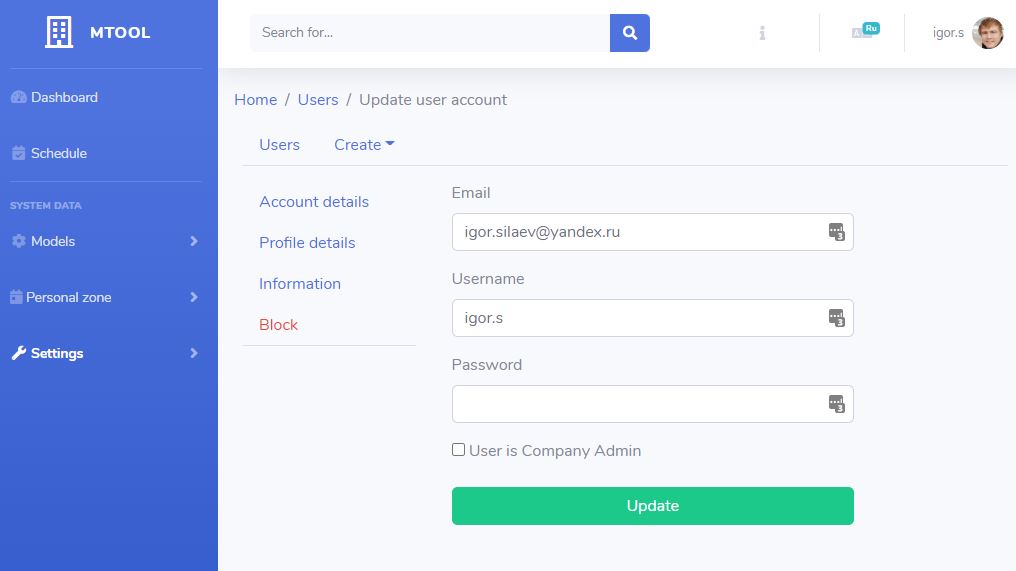
An employee in a company - can be a User or an Administrator of the company. Role change is available to administrator in the User's Account page. After registration, the user is assigned by default the User role (CompanyUser)
| Role | Name | Comment |
|---|---|---|
| Company administrator | CompanyAdmin | Full access to functionality. Working with Settings and Closed Models |
| Company user | CompanyUser | Limited access. Works with open models |
Company parameters
Parameters (Param) are general system settings, the type of notification, modes, etc.
Only the Company Administrator has access to the parameters. Parameters
Objects
Objects are pieces of equipment or other company objects on which actions are performed. Activity is built around objects. Objects can be equipment, operations, shops, buildings.
Objects can be structured as a tree. Objects.
When creating an object, you can specify the Object Type - thus classifying and grouping objects, which makes it easier to work. Object types.
Actions
The main planning element is Action - contains information about ongoing activities, dates, event participants. Action
- is the main element of planning.
- is a task scheduled for a specific time, displayed in the calendar, has time to complete, can have several executors, while the following possible Action Behavior is defined:
- Task
- Planned preventive work (Preventive)
- Emergency task
- in the case of scheduled preventive work - the action can be periodic, while the repetition interval is indicated.
- Action can be bound to an Object
- Actions can have a hierarchical structure, means, an action can have a parent.
- Actions can be typed -
Action Type (ActionType)- an action can have one or more Types. In other words, they are user-defined tags for grouping and filtering convenience. Action types - The action has
Status (ActionStatus): New, In progress, Completed
After creating an Action, the planning of the created work occurs automatically. Thus, the work enters the calendar as a set of events (one event for one-time work).
#### Event
Event - is subentry inside the Action. It reflects the participants involved in the work, comments on the implementation, the time spent on the work.
Events also can be generated automatically:
- during planning work in the future.
- service events reflecting changes occurring with the Action
The event can be edited by changing the status, moving the event in time, changing the artist.
When an employee performs work related to a specific Action, he can leave a comment, create a new event (Event), which will reflect the work done and the time spent. Work with events occurs through the general Action-Event form.
Preventive maintenance
When working with a Plan Preventive event - the employee changes his status according to the actual results of work:
- Planned preventive event can be marked as -
canceled - Planned preventie event can be marked as -
completed - Planned preventie event can be marked as
completed with the creation of an additional Action- this may be relevant if important notes are found. As a result, a new task associated with this event will be created.
Staff work
When performing daily work, employees can use the sections:
- My Preventive - this section automatically filters preventive tasks related to this employee.
- My events - this section displays Events (planned works) - in which this employee is indicated as the executor.
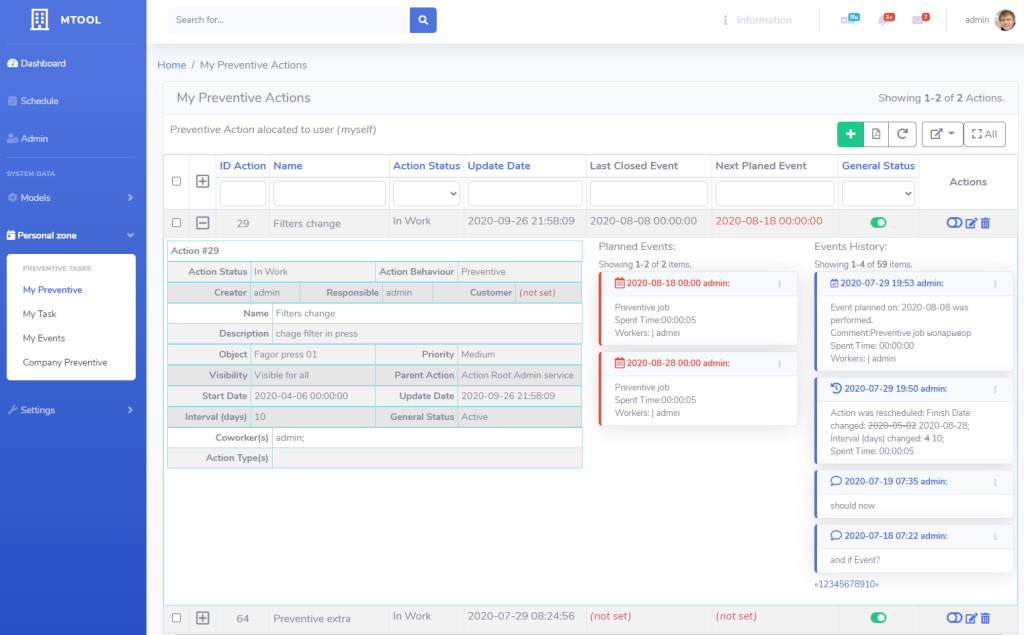
In daily work, employees:
- work with Events - carry out planned work focusing on preventive planed events tied to each employee personally. Upon completion of the work, employees close scheduled events - move them to a closed status, adding comments.
- if necessary, employees can print a PDF report on completed events (tasks).